
Nearby and movement
In Nearby, select an entity and read the footer actions. Use the offered interaction, approach, follow or combat action for that target. Assess opens its details.
/scoot 3 moves approximately three metres forward. /combat toggles combat mode. Rest with /kneel, /sit, /lie, or /stand.
Movement is simplified: the terminal client does not locally simulate jumping, falling, gravity or stairs. Keep that in mind when following someone or supervising a script through difficult terrain.
Inventory and equipment
Use Inventory to browse packs and carried items. Select the item, then use the footer for the available action: use, move, split, drop, or salvage. Split opens a quantity input in the footer; enter an amount and press Enter, or Escape to cancel.
Choose Move, then select a destination pack and press Enter. To give the item away, switch to Nearby, select the recipient and use Give to target.
Show the prompt with relevant item and footer actions.
Equip shows equipment and its available equip/unequip actions. Check the context details before changing gear or consuming an item.
Spells and progression
In Spells, filter the list, select a spell and press C to cast on yourself. To cast on something else, first select it in Nearby and choose Target, then return to Spells and use Cast on target. Escape cancels targeting.
Character contains character stats and improvement actions. Read the displayed cost before spending experience or training a skill.
Buy and sell
Select a vendor in Nearby and choose Shop to open its stock in Trade. Select an item and press B to buy one immediately. To sell, switch to Inventory, select an eligible item and press S to sell one. These actions submit directly, with no quantity prompt or review step. Use Exit in the vendor’s Trade tab to close the shop.
Trade with a player
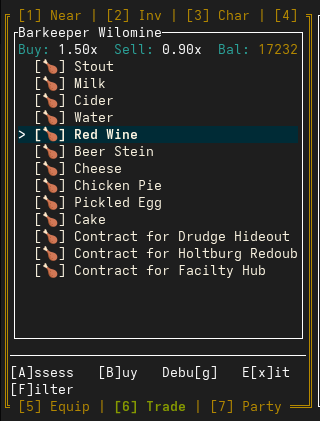
Select a player in Nearby and choose Trade. In Inventory, choose Offer on items to add them to your side. Return to Trade and press Z to switch between your items and your partner’s. Use Accept when ready; Decline withdraws your acceptance, Reset clears both offers, and Exit closes the trade.
Salvage items
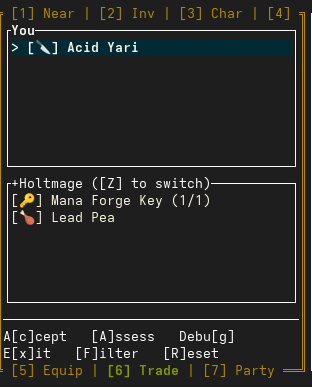
With an Ust in your inventory, select an eligible item in Inventory and press V to mark it SALVAGING. Press V on other eligible items to add them, or on a marked item to remove it with Unsalvage.
Select a marked item and press Enter for Confirm salvage to submit the queued items for destruction. Check the marked items before confirming; Escape cancels the salvage interaction.
Party and recovery
Party shows the roster and member actions. Commands such as /create-party, /invite PLAYER, and /leave are also available.
Use /help death for corpse recovery and permissions, and /help ls for lifestone recall. The TUI command reference has the full command groups.