
Focus a pane
Press Tab to move between panes, or Shift+Tab to move back. The focused pane determines what a key does.
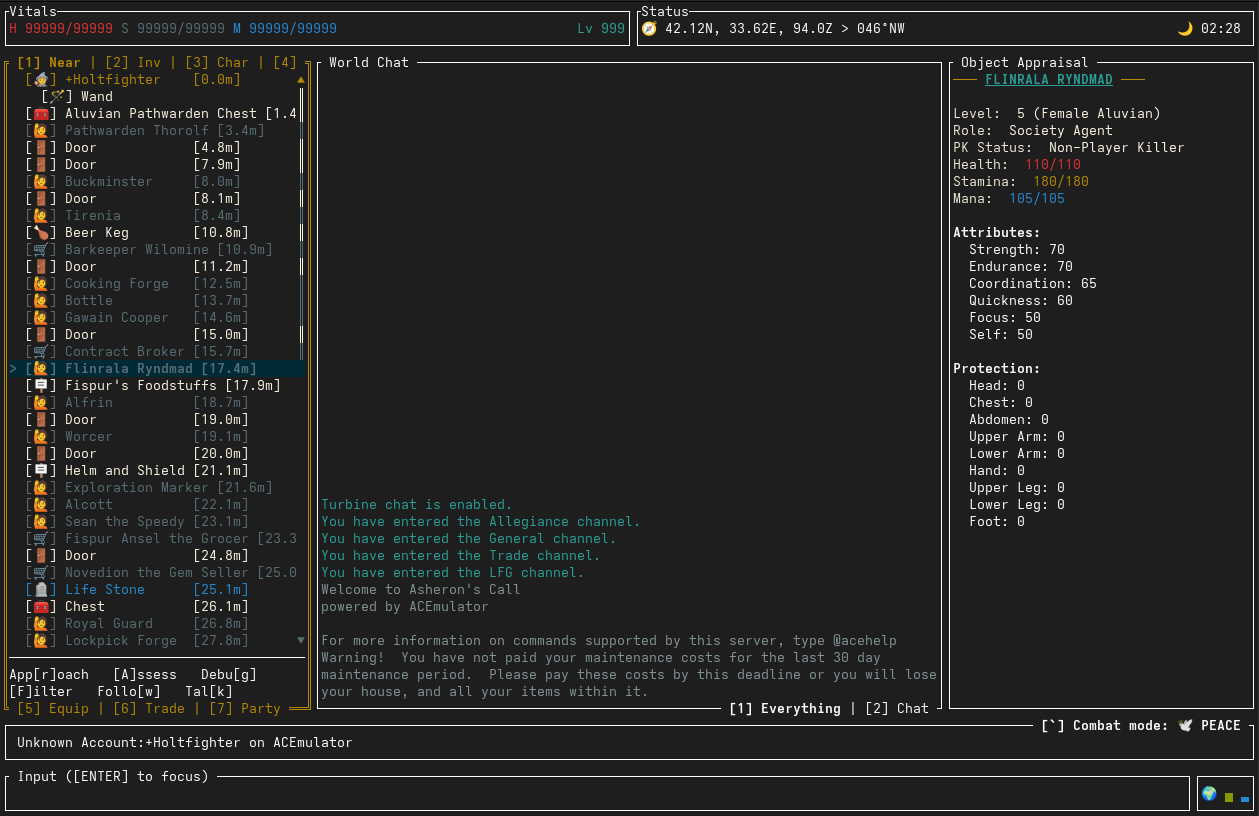
The dashboard holds game lists and character information. Chat shows messages and feedback; the context pane shows details for the thing you are inspecting. The input line is where you type messages and commands.
Choose a dashboard tab
With the dashboard focused:
| Key | Tab |
|---|---|
| 1 | Nearby |
| 2 | Inventory |
| 3 | Character |
| 4 | Spells |
| 5 | Equip |
| 6 | Trade |
| 7 | Party |
Use the displayed navigation keys to select an entry. The footer updates with actions for that entry—such as Assess, Use, Equip, or Follow—and their shortcuts. Watch it when learning a new tab.
Filter and inspect
Use Filter where offered to narrow a list. Complete or cancel the filter input before using the tab’s other shortcuts.
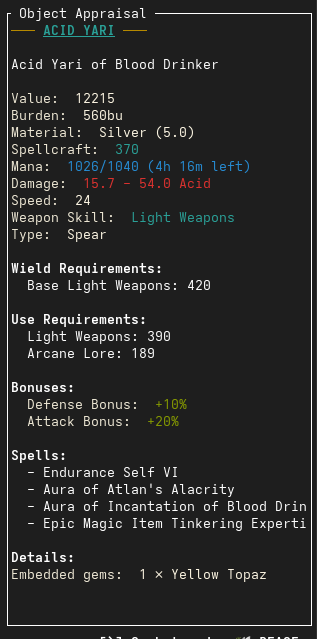
Choose Assess to inspect the selected item or creature in the context pane. Scroll long panes with their navigation controls or the mouse wheel.
Talk and quit
Press Enter to focus the input line, type a message or command, then press Enter again to send it. If the dashboard has an Enter action, switch to the chat pane with Tab first. Escape leaves input; outside input it can cancel your current interaction.
Use /help for commands and /help COMMAND for a topic. Ctrl+D or Ctrl+Q opens the exit confirmation. Press Enter/Y to exit or Esc/N to cancel.