
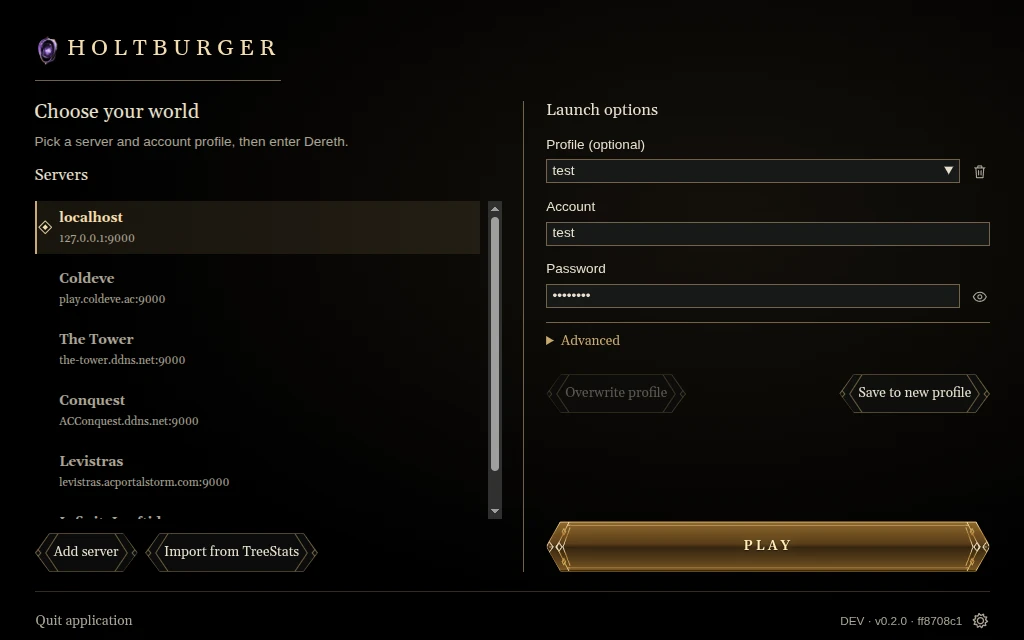
The launcher keeps your servers, account profiles and game-data settings together. Select a server on the left, choose or enter your account on the right, then press Play.
Import your server
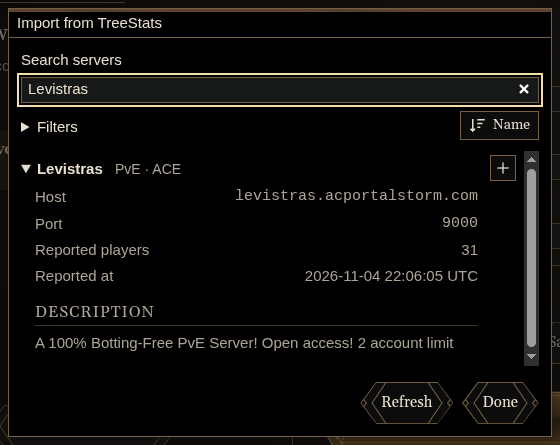
Choose Import from TreeStats in the launcher. Search for your server, or filter by server type and software. Sort by population when you want to see where people are playing, then add the server to your launcher.
Holtburger is developed against ACE. GDLE compatibility is unverified; check the server software before choosing.

Add your account
Select the imported server and enter your account credentials. Save to new profile keeps a connection ready for next time; profiles let you switch between accounts without retyping the details. The server can also remember its own DAT folder, shared by all its account profiles.
Accounts belong to the server. Follow its account-creation instructions if you need a new one.
Press Play, choose your game-data folder if prompted, and choose your character.
Enter a server manually
For a private server or one missing from TreeStats, use the launcher’s server editor and enter the address and port supplied by its operator.
For failed connections, see Help.
Launch settings
Open App settings in the launcher to choose a graphics backend and toggle Synchronize frames with the display (VSync) or Use GPU compositing. Apply changes with Save and restart. Windows defaults to Direct3D 11 with VSync off and GPU compositing on; Use defaults restores your platform’s choices.
For explanations of each setting, see graphics troubleshooting. If pieces of the interface briefly disappear, see Windows UI flickering.
Switch characters
While playing, open the System menu and choose Return to main menu. This logs out your character and returns to character selection on the same connection.
Switch accounts or servers
From character selection, choose Disconnect to return to the launcher. If you are in the world, first use System menu → Return to main menu. Select another server or account profile in the launcher and press Play.
Quit application closes the client.