Use your existing AC files
Holtburger looks for your game data automatically. If it cannot find your DATs, it asks you to choose their folder when you launch the client.
Choose the folder containing client_portal.dat, client_cell_1.dat, and client_local_English.dat. Keep client_highres.dat alongside them if you have it.
Keep the folder somewhere permanent, outside the Holtburger application directory.
Need the DATs?
Download the End-of-Retail DAT files, also linked by ACCPP. Extract the archive, then select the folder containing the DAT files in Holtburger.
Keep server-specific DATs separate
Each server can remember its own DAT folder, shared by all account profiles on that server. Keep a server’s custom files in a separate folder, and switching servers brings the right files with you.
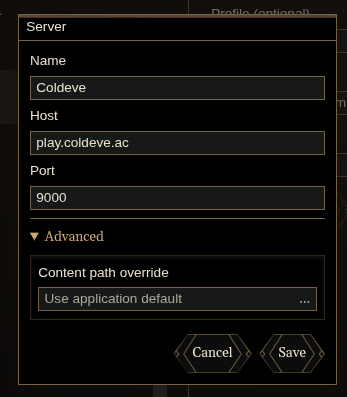
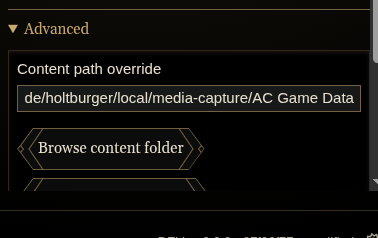
Edit the server and expand Advanced. Under Content path override, use the … button to choose its DAT folder, then press Save.
To return a server to the application default folder, clear Content path override with the × button, then press Save. An empty field shows Use application default.
For Linux Flatpak folder-access problems, see the Linux installation guide.