
Navigate with the minimap
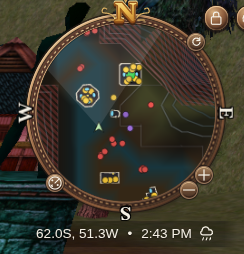
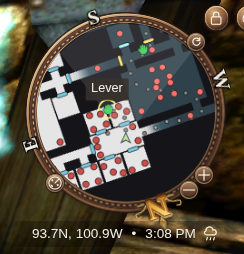
The minimap puts the surrounding terrain under your radar markers: buildings, elevation and impassable areas help you read the route ahead. Inside dungeons, it shows the dungeon layout so you can follow passages and keep your bearings. Where floors overlap, the map favors surfaces closest to your current elevation.
A breadcrumb trail marks where you have recently walked, helping you retrace your steps through winding passages.
Read the world map
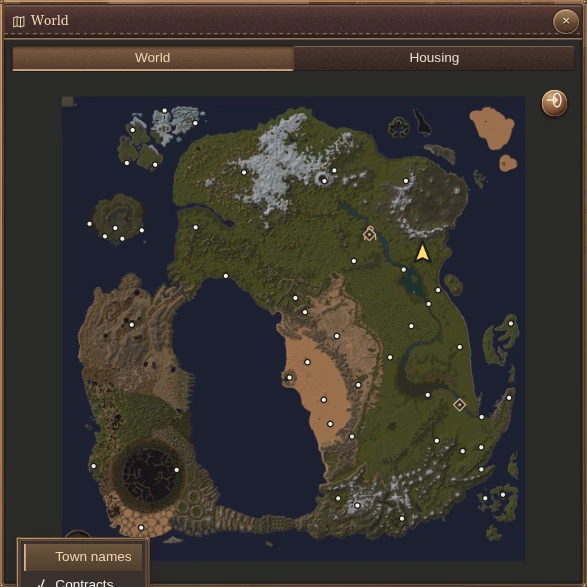
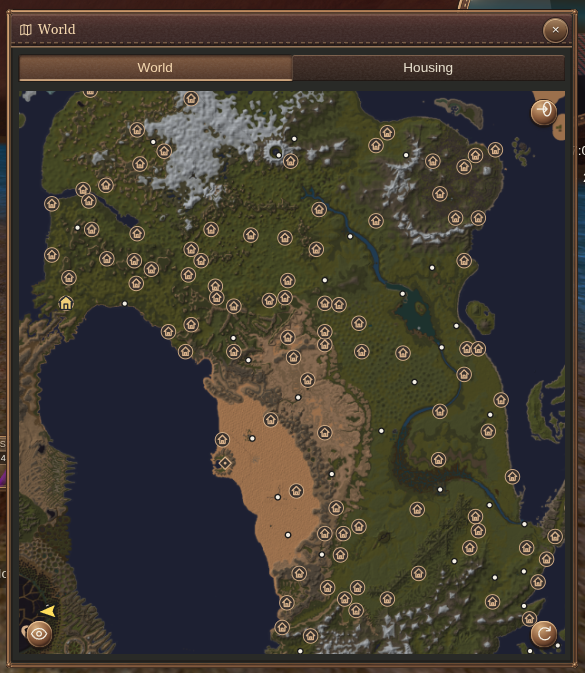
Open World and use the map to explore Dereth. Drag to pan and scroll to zoom. Reset view returns to the whole-world view.
The map does more than retail’s overview: switch on overlays to plan a quest run or look for a home without piecing destinations together elsewhere. Open Map visibility to choose:
- Town names for settlement labels across the map.
- Contracts for contact locations and quest areas from your Journal.
- Waypoints to keep your chosen destination visible alongside the other layers.
- Housing to search for available cottages, villas or mansions and see the results on the map. See Housing for the next steps.
Combine the overlays for your trip, or hide them to simplify the view.
Follow a waypoint
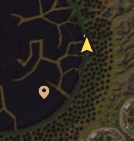
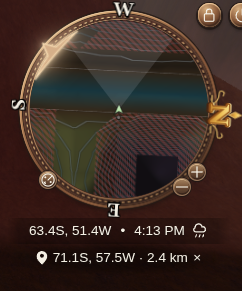
Mark your next stop and follow its direction and distance on the minimap. The world map keeps the destination pinned while you travel.
Use the map’s context menu to mark a destination, or enter coordinates in chat:
/waypoint 42.3N, 12.7E/waypoint shows the current waypoint. /waypoint clear removes it. /wp is an alias.
Coordinate links in chat can also set a map pin. Enable Interact with chat history before clicking a coordinate link.
Recall
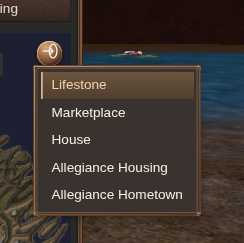
Open Recall destinations on the map to see the destinations available to your character. Chat shortcuts include /lifestone, /marketplace, and /house recall.
Use the destination that fits your trip. House and allegiance recalls depend on your character’s home or allegiance arrangements.
Find a specific destination
Use the Journal for contract contacts and quest areas, Housing for house searches, and corpse recovery after a death.
Find your way back
Use /corpse to show your saved last outdoor death location. /corpses lists approximate deaths observed during the current session.
Enable Interact with chat history and click the coordinates to set a waypoint. Follow it using the world map, then find and open your corpse.
Use the coordinates to reach the area, then look for your corpse. The /corpses history clears when the character session ends.

To let another player recover your items, use corpse permissions.
Check vitae
Open Enchantments to inspect vitae alongside other harmful effects.