
See your packs together
Inventory puts your main pack and bags in one scrolling view, with a heading for each bag. Click a pack icon to jump straight to its contents instead of opening bags one at a time.
Cycle the sort control through Native, Alphabetical, and Item type to find things within each bag. Sorting changes the view without moving your items; return to Native when arranging their actual order.
Equipment at a glance
Items remember the last pack they were in, even across restarts. Unequipping gear or switching loadouts tries each outgoing item’s remembered pack first, then your main pack and other bags. If that pack is full or no longer carried, the item remembers whichever pack receives it instead.
The equipment strip keeps worn gear beside your pack contents. Hover a slot to dim items that cannot go there; drag an item to narrow the strip to compatible slots. Drop it onto a slot to equip it, or drag worn gear back into a bag to unequip it.
Helmet and cloak visibility controls sit below the strip, alongside Create loadout for saved gear swaps.

Recognize cantrip tiers
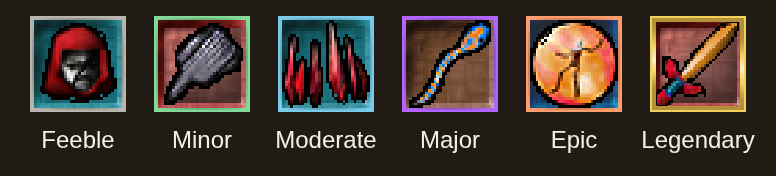
Equipment icons have colored borders showing their highest known cantrip tier, from Feeble through Legendary. Legendary borders also have an animated metallic glint. Scan loot or compare equipment at a glance, then inspect an item for its actual spells and requirements.
The same borders appear in loot containers, vendor stock, trade offers and item shortcuts. Holtburger appraises equipment in the background to fill in missing tiers; an item without a tier border may not have been appraised yet.
Check your currencies
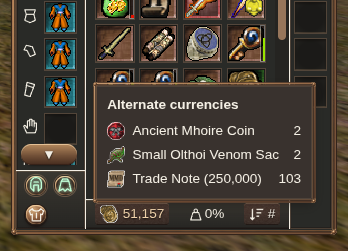
Hover over the pyreal total at the bottom of Inventory to see Alternate currencies. Holtburger totals currencies such as Mhoire Coins, venom sacs and trade notes across your packs—no hunting through bags or counting stacks as in retail.
Move items
- Drag an item onto a compatible stack to merge them.
- In Native sorting, drag an item onto another item to place it before that item when they cannot merge.
- In Native sorting, drag items to pack headers to move them between packs.
While dragging an item, hold it near the top or bottom edge of the inventory contents to scroll toward another bag or row. Move away from the edge to stop scrolling.
You can also reorder ordinary packs. Main Pack stays first and spell foci stay last.
Split a stack
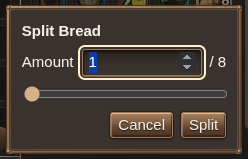
Select the stack and press Y, or use Split stack in the selected-item actions. Choose the amount using the number field or slider.
Leave a free inventory slot for the new stack.
Auto-merge a bag
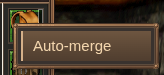
Open the bag’s context menu and choose Auto-merge to combine its compatible stacks. Check the completion feedback for changes and freed slots.
Auto-merge applies to the chosen bag when requested. If it stops after merging some stacks, those completed merges remain in place; inspect the bag before retrying.
Keep frequently used items close
Drag usable items onto an action bar for quick access. Use equipment loadouts when you want to change several slots together.