
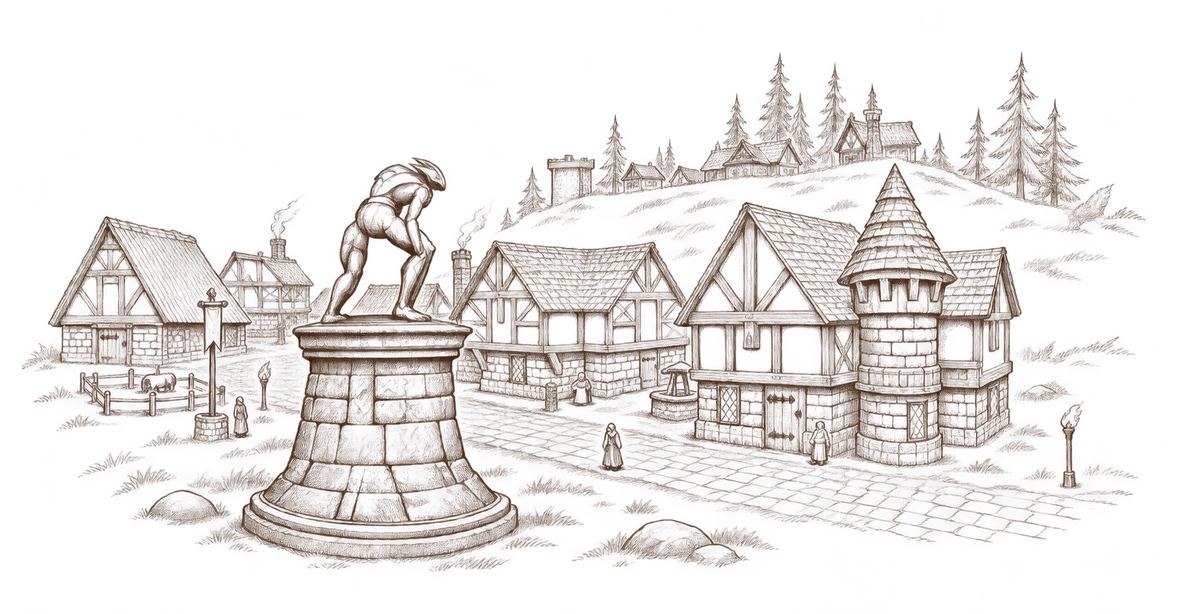
Move and resize the HUD
Choose Unlock UI layout to edit the layout. Move the HUD elements and use the available resize controls, then choose Lock UI layout when finished.
Give frequently used controls comfortable positions before a fight. You can arrange windows and bars separately; leave room for chat, targeting and the world view.
The spell bar resizes in whole columns, with a minimum of ten spells. Widen it to show more shortcuts at the current icon size.
If you want to start over, use Settings → HUD layout → Reset HUD placements.
Scale controls and text separately
Use overall UI scale to change control sizes, and text scale to adjust readability. Start with the text size you can comfortably read, then fit the controls around it.
Use Settings → UI → HUD windows → Window background opacity to make floating windows more solid while keeping text and icons clear.
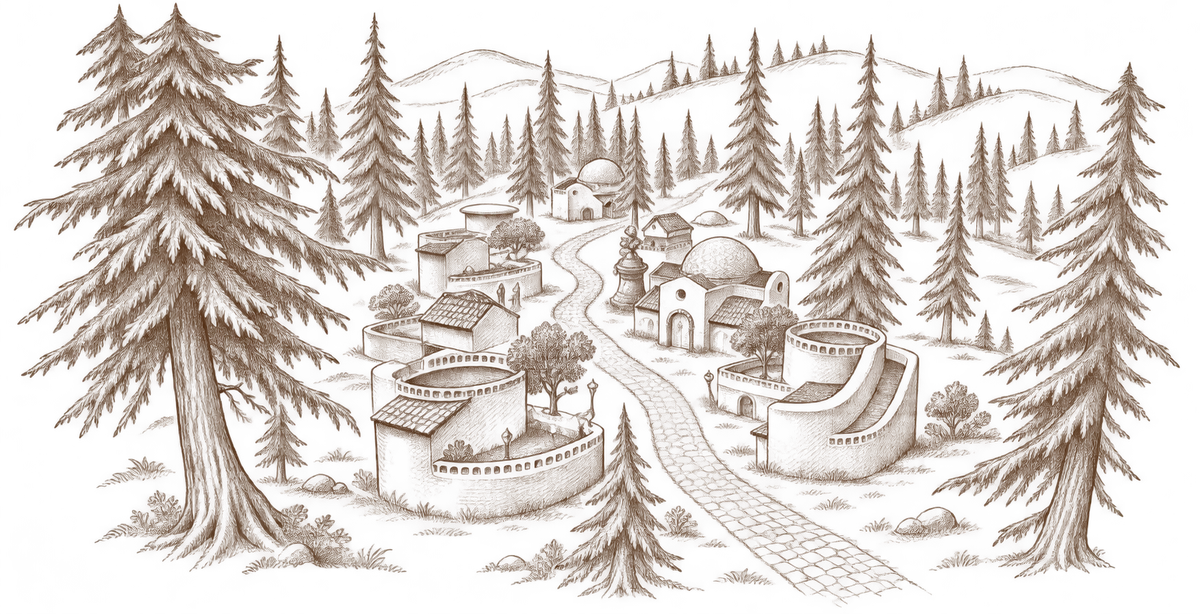
Choose fonts and themes
h3d is an Electron desktop app with a browser-based interface. Its UI uses HTML and CSS, giving themes the expressive range of web interfaces: custom typography, textures, gradients, transparency and animation.
Open Settings → UI to choose Traveler’s Kit, Base or an installed custom theme. Body text, headings and monospace text each have a font choice; Theme default follows the theme’s typography.
Themes can change much more than colors: window textures and frames, buttons, tabs, fonts, HUD styling and feedback animations. A theme can give the interface a different visual character while keeping the same controls and gameplay.
Install or make a theme
Choose Open themes folder in the theme settings. Put the theme’s folder there, click Refresh list, then select it. Each theme is a folder containing theme.css, with any accompanying images and fonts.
For your own theme, start with a few CSS overrides or build a fuller skin. Use Reload theme to see edits without restarting the client. HUD placement stays under your layout controls; your explicit font choices override the theme’s defaults.
The theme authoring guide covers the folder structure and styling hooks.
Keep useful information visible
Vital warnings, progression feedback and the selected-target HUD help you notice changes without opening another panel.
Use /fps to toggle the FPS display when adjusting graphics. For startup or rendering trouble, see Help.
Save the right things
Your preferences are saved on this computer. Action-bar contents, spell bindings and alert rules are saved separately for each character.