
Cannot connect
Check the server address, port and account in the launcher. Holtburger is developed against ACE; GDLE compatibility is unverified.
On Windows, if Play returns you to the launcher with host exited before completing the protocol and code=3221225781, follow the missing-DLL recovery steps.
Before the game opens
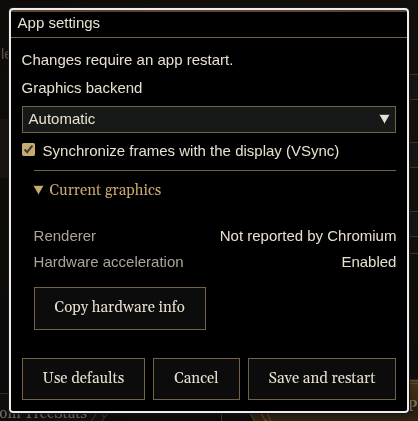
Open the launcher’s gear button → App settings for process-wide graphics choices. Apply changes with Save and restart. These choices are separate from the graphics controls inside the game.
| Setting | What it controls | Windows default |
|---|---|---|
| Graphics backend | The graphics API used by the browser runtime. Automatic lets it choose; Windows also offers OpenGL and Direct3D 11. | Direct3D 11 |
| Synchronize frames with the display (VSync) | Requests frame synchronization with the display. | Off |
| Use GPU compositing | Uses the GPU to combine interface surfaces for display. Turning it off can resolve missing UI patches but significantly reduce frame rates. | On |
Upgrading from the earlier graphics settings resets launcher graphics preferences to platform defaults on every platform; choices saved afterward persist. Server profiles, accounts, and in-game settings are unaffected. macOS and Linux default to Automatic with VSync and GPU compositing on. Use defaults restores the choices for your platform. Change one setting at a time and restart to compare results.
If the application will not open, start with the installation guide for your platform. It covers unsigned-download prompts, Linux runtime dependencies, and Flatpak folder access.
Windows UI flickering
If panels or text briefly develop transparent holes that reveal the content underneath, open App settings, choose Use defaults, and then Save and restart. Windows defaults to Direct3D 11 with GPU compositing on. This configuration has resolved the corruption on a tested Windows 11 NVIDIA laptop, including fullscreen; behavior on other machines may differ.
If artifacts persist with Direct3D 11, turn off Use GPU compositing and choose Save and restart as a compatibility fallback. Disabling it can significantly reduce frame rates.
This corruption has been observed on Windows 11 NVIDIA laptops in the launcher, character selection, and game panels. It may occur briefly after startup or recur later. Similar Windows/NVIDIA corruption is reported in Electron issue #43122, but the exact cause in Holtburger has not been established.
If you previously added graphics flags to a shortcut, remove them before comparing saved settings; explicit launch overrides can take precedence. If Direct3D 11 performs poorly on your system, compare OpenGL, checking both frame rate and UI stability.
If flickering continues with GPU compositing off, include Copy hardware info and a short recording in your report. A recording is more useful than a screenshot for a glitch that lasts only a frame. See the Windows installation troubleshooting section for other startup problems.
If the game runs slowly
First check App settings → Use GPU compositing in the launcher. If it is off, enabling it and choosing Save and restart can substantially improve frame rates. A previously saved preference may still have it disabled. If enabling it causes transparent UI holes, see Windows UI flickering for the compatibility tradeoff.
Change one setting at a time so you can judge the result:
- Reduce render scale to draw fewer pixels, trading sharpness for speed.
- Reduce view distance to draw less of the world.
- Adjust shadows, ambient occlusion and weather to reduce scene work.
Use /fps to show the frame-rate display while comparing settings. Render scale above the normal resolution draws more pixels for a sharper result at a higher rendering cost.
If content is missing
Check the game-data folder. That guide includes a DAT download if you need the files. /assets shows the current content location.
Use /assets retry to retry failed loading after a temporary problem. If you replace mounted archives or repair the installation itself, restart with the repaired folder.
Report a rendering problem
Open App settings → Current graphics → Copy hardware info in the launcher. The report includes the running Electron/Chromium versions, GPU details, and startup/saved graphics settings. Include it with the settings you changed and a screenshot or short recording showing the problem.
Report a problem
Open a GitHub issue with your version from /version, platform, reproduction steps, expected result and what happened. Add relevant errors, a screenshot or a short clip. Include server software for connection issues and Copy hardware info for rendering issues.
Remove account credentials and private messages from anything you attach.