
Your attack controls
Equip your weapon, press Backquote (`) to enter combat and select a target by clicking it or using Smart Tab.
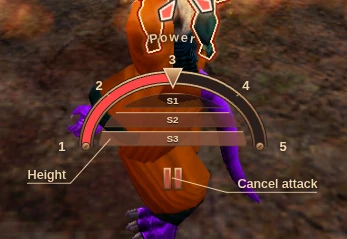
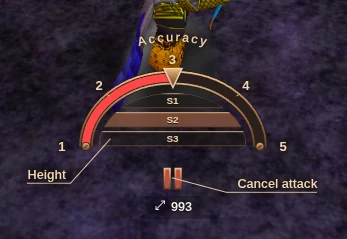
- 1–5 chooses a melee power or missile accuracy preset.
- Shift+1 / Shift+2 / Shift+3 chooses high, medium or low attack height.
- Escape cancels the attack.
Choosing power, accuracy or height starts attacking your selection, or updates your ongoing attack. Keep your hands on the movement keys and use the HUD’s key hints to adjust as you fight.
The outer arc shows power or accuracy; the inner rows show attack height. You can also click these controls or drag the arc for a precise value. ▶ starts an attack with the current settings, then becomes a pause control while attacking. Missile stance also shows your ammunition supply.
If you have trained or specialized Recklessness, the arc marks its 10–90% power/accuracy range. A skull and Reckless label show when your chosen setting is inside that range.
In magic stance, use your spell bar instead.
Use Smart Tab in combat
Tap Tab to cycle targets, or hold it to acquire an immediate target. Shift+Tab cycles in reverse. Use the hostile-only and in-view options to keep the selection useful for your current fight.
Looking for a specific target? Use the Nearby panel or /scan NAME.
Choose your target, then start your attack or cast. Use the displayed key hints for power, height and spell shortcuts; the full keymap covers each stance.
Keep track of your target
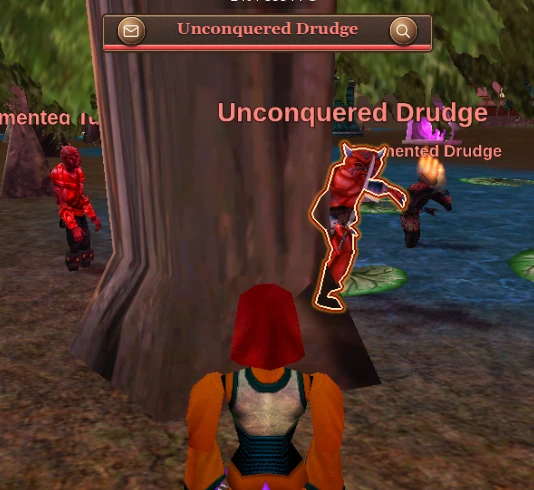
A bold outline traces your selected creature or object, staying visible through walls and other obstructions. It is easier to follow in a crowd than retail’s corner reticle.
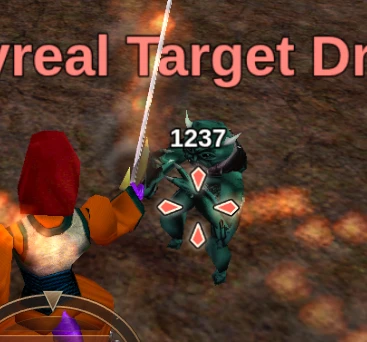
A separate combat reticle marks the target you are actively attacking or casting at, so you can distinguish selection from the ongoing fight.
Read health and damage in the world
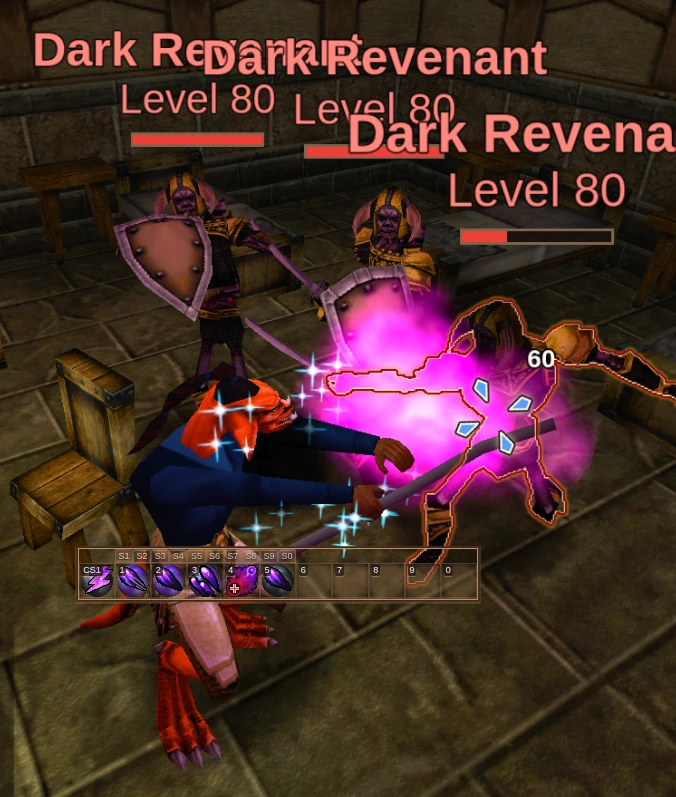
In combat stance, health bars appear beneath the names of nearby hostile creatures involved in combat when recent health information is available. You can follow several enemies’ remaining health without selecting each one in turn.
Holtburger refreshes that information automatically, prioritizing enemies you have attacked most recently. Bars disappear when you return to peace stance.
Floating damage numbers show hit amounts, with an emphasized CRITICAL label for critical hits. MISS and RESIST indicators show when an attack is evaded or a spell is resisted, so you can read the outcome without watching chat.
Recognize summons
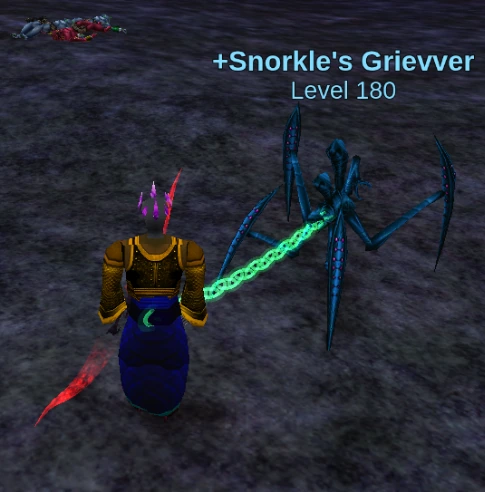
A glowing leash links each nearby summon to its owner. By default, your summon’s leash is green and other players’ leashes are pale blue. Summon names use the same color as player names, making them easier to distinguish from ordinary creatures.
When a summon’s remaining lifetime is known, it and its leash flicker together as expiry approaches. If your summon dies or the server removes it from view, combat chat and a toast show “Your summon is no longer active”.
Fight on the move
Keep running while casting or firing a bow. Movement continues through the windup with your normal movement controls—no sliding key combinations to learn. Reposition between enemies or keep your distance while attacking.
You can also use healing kits while running. Put a kit on an action bar to heal yourself with a shortcut while you keep moving.
For looting, using items and selected-entity actions, see Interactions.
Between fights
Use loadouts for planned gear changes, and ready your spell bars for the next encounter.