Your chat panel
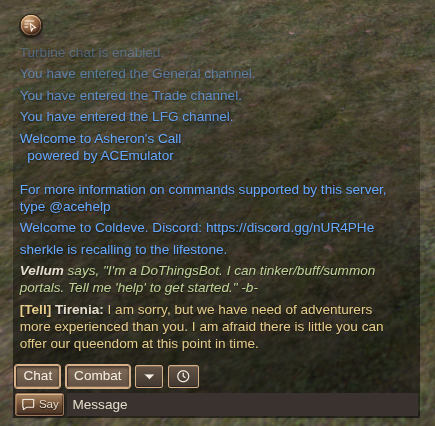
The chat panel combines message history, channel filters and a message composer. Chat and Combat toggle those message groups; the dropdown filters individual channels and the clock toggles timestamps. The destination button beside the message field chooses where you send.
Keep the world clickable
Chat history is click-through by default. You can see messages while selecting, steering and interacting with the world behind them, so the buffer does not take that space away from play.
Activate the history when you want to scroll, select text or follow a link:
- Hold Control (Command on macOS) for temporary interaction. Release it to let clicks through again.
- Click Interact with chat history to keep it interactive; toggle it off or press Escape when finished.

Send a message
Press Enter to type a message. Choose the destination, type, and send; sending returns you to the game. If a command suggestion is highlighted, Enter accepts that suggestion first.

Discover commands as you type
Start typing a command to see matching suggestions, their syntax and a short description. Browse with the arrow keys and accept with Tab or Enter—handy for finding a command without leaving the game to look it up.
Input history lets you reuse commands you have already sent. Chat entry, drafts and history interaction remain available during portal travel; panel shortcuts remain usable too.
Type /help for the command list or /help COMMAND for one command. Both / and @ can introduce commands. Chat commands also include utilities such as waypoints, recalls and corpse permissions.
Use links in chat
With chat history interactive, click:
- Coordinates to set a waypoint.
- A linked name in an entity alert to select that creature or object. You can then inspect it or interact as usual.

Filter the noise
Use message and channel filters to keep relevant conversations visible. The timestamp control adds or removes times beside messages.
Chat settings can also suppress your own evasion/resist notices and spell incantations when those messages crowd the history.
Use an emote
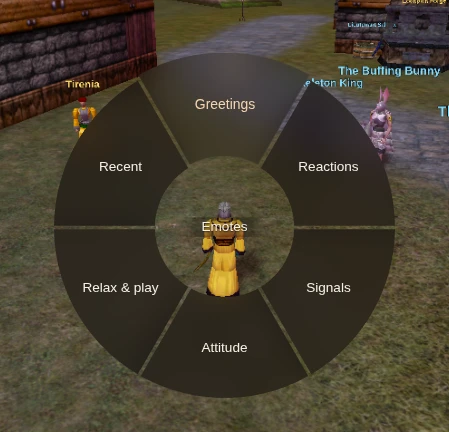
Hold T to open the emote wheel. Click an emote, or select it with Space or Enter. Releasing T dismisses the wheel. Recent choices make repeated gestures easier to find.
When an emote requires peace, Holtburger can switch temporarily and restore the previous combat stance afterward.