
More than item shortcuts
Click an action-bar cell to use an item, equip a piece of gear or apply a saved loadout, or use its default keyboard shortcut.
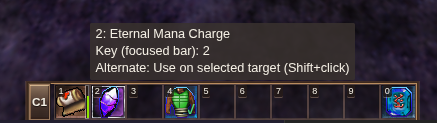
Targeted items default to you. Unlike retail shortcuts, activating a healing-kit cell uses it on you immediately—no extra targeting keystroke. Hold Shift while clicking or using the shortcut to use your selected target instead, or choose a target when prompted.
Healing kits work while running, so you can use a shortcut to heal yourself without stopping.
Mix actions on one bar, or keep separate bars for different jobs:
- Combat supplies: keep potions, food and other consumables ready without searching your packs. When a consumable runs out, its shortcut can find an equivalent replacement in your inventory.
- Weapon swaps: put individual weapons on adjacent cells, or use a loadout to change several weapon slots together while leaving your armor alone.
- Task-specific gear: save a crafting or buffing outfit as one loadout and your fighting gear as another. Each gets a single shortcut, with control over exactly which slots it changes.
You can keep several bars visible together—for example, supplies beside your combat controls and gear swaps along the bottom. Each bar can be horizontal or vertical, in one strip or two rows of five.
Fill a bar
Drag a usable item from inventory onto an action cell, or save an equipment loadout there for a gear swap.
Click a filled cell to activate it. Right-click an item-backed cell to examine its item.
Use the keyboard
Press Ctrl+1 through Ctrl+0 to focus a bar. While that bar is focused, 1–0 activates its ten cells. You can also move between cells with the arrow keys and press Enter to activate the focused cell.
See the controls reference to look up or customize bar bindings.
Arrange and manage
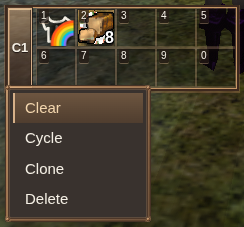
You can keep up to ten action bars, with ten cells each. Use the bar menu:
| Action | Use it to |
|---|---|
| Clone | Make another copy to arrange separately |
| Cycle | Move the bar to the next numbered position, wrapping the last to first. Its Ctrl+number shortcut changes with it. |
| Clear | Remove its cell bindings |
| Delete | Remove the bar |
Layout controls let you move and rotate bars. The last bar cannot be deleted.
Consumables
A consumable binding can switch to an equivalent item in your inventory when the original is exhausted. Keep replacements on hand and check feedback if a binding cannot be used.
Rebind equipment when you replace its saved item.
Action-bar contents and loadouts are saved per character. Spell tabs have their own spell bar.